
Add a Lookup Table to a Query
Optionally, you can specify that a Query access a Lookup, as it contains data the Query needs.
Note: Before you can add a Lookup table, the Query must first have results. See Refresh a Query for more information on this process.
To add a Lookup table to a Query:
-
Select Analytics from the top navigation bar, then select Settings > Queries from the side navigation menu. The Analytics Queries screen is displayed.
-
Optionally, search for and select the desired Query (see
-
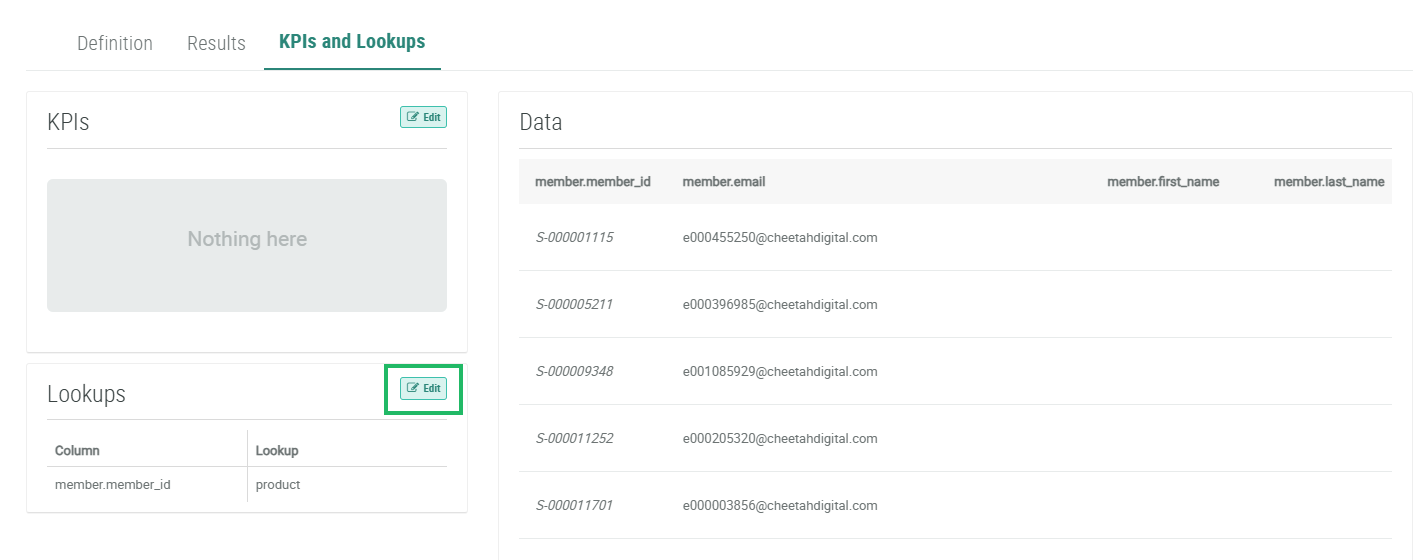
Select the KPIs and Lookups tab.
-
Within the Lookups section, click Edit. The Edit Bigdata Query pop-up window is displayed.
-
Click Add Lookup.
-
From the Lookup drop-down menu, select the desired Lookup table.
-
From the Column drop-down menu, select the column on which you want to look up records.
-
Optionally, repeat the above steps as needed to add other Lookup tables and columns.
-
Optionally, to remove a Lookup table from this Query, click the Remove icon next to it.
-
Click Save.
